Plans, billing and what happens if a plan lapses
What Free, Pro and Team cost and include, how the 14-day trial works, how to pay or cancel, and what happens to a workspace whose plan runs out. Nothing is ever deleted.
The plans#
| Plan | Price | Who it is for |
|---|---|---|
| Free | $0 | One person, in one browser. No account. Your data stays on your device. No photos and no sharing. |
| Pro | $15 a month billed yearly ($180 a year), or $19 billed monthly | One person who wants their listings on every device, plus photos. |
| Team | $79 a month billed yearly ($948 a year), or $99 billed monthly | An office of up to 10 people in one shared workspace. Everything in Pro. |
Prices are per workspace, not per person. A Team plan costs the same for two people or ten.
20% off the first year#
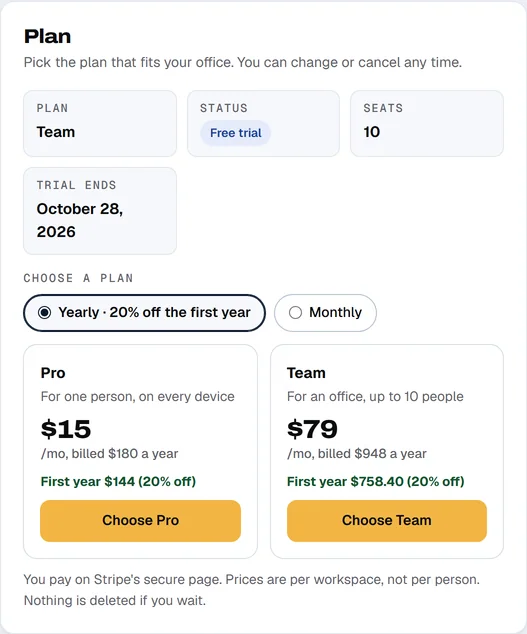
If your workspace has never had a paid plan and you choose a yearly plan, the first year is 20% off: $144 for Pro or $758.40 for Team. The second year is the regular price. Monthly plans do not get the discount. The Choose a plan screen shows the discounted amount before you pay.
The 14-day trial#
- The trial is the Team plan, with up to 10 people, for 14 days.
- It needs no card.
- Start it at app.a9lister.com/start, or with Try Team free for 14 days in the free tool. See Teams.
- Each email address can start one trial.
A bar at the top of the workspace counts the days down: "Free trial · 9 days left." You get an email when the trial is about to end and one when it has ended. If you do nothing, the workspace becomes read-only when the 14 days are up. Nothing is deleted.
Choose a plan#
Only owners can do this. Members see the plan but cannot change it.
- Open the Profile tab and find the Plan card. (During a trial, the bar at the top has a Choose a plan button that takes you there.)
- Pick Yearly · 20% off the first year or Monthly.
- Click Choose Pro or Choose Team. A9 Lister opens Stripe's secure payment page.
- Pay there. You come back to A9 Lister and the plan card shows Active.
Payment is handled by Stripe. You enter your card on Stripe's own page, so A9 Lister never sees or stores your card number. Stripe takes the payment and handles sales tax.
Change your plan, update your card or cancel#
Click Manage billing on the Plan card. It opens Stripe's billing page, where an owner can:
- update the card and see invoices;
- switch between Pro and Team, or between monthly and yearly. Stripe works out the difference for the days you have left;
- cancel the plan.
If you cancel#
Cancelling takes effect at the end of the period you already paid for. Until then, nothing changes: everyone keeps working. The bar at the top says "Your plan ends on October 31, 2027, then this workspace becomes read-only," with a Keep my plan button if you change your mind. When the date arrives the workspace becomes read-only. Nothing is deleted.
What each status means#
The Plan card shows a status label. Everyone in the workspace can see it.
| Status | What it means |
|---|---|
| Free trial | The 14-day Team trial. Everything works. The days left show at the top. |
| Active | Paid. Everything works. The card shows when it renews, or when it ends if it was cancelled. |
| Payment overdue | The last payment did not go through. Everything still works for 14 days. The bar says "Update your card within 9 days or this workspace becomes read-only," with an Update payment button. If the payment goes through, the label goes back to Active. |
| Read-only | The trial ended, or the 14 days ran out after a failed payment. See below. |
| Cancelled | The plan was cancelled and the date it ended has passed. The workspace is read-only, the same as above. |
When a workspace is read-only#
A lapsed workspace stops accepting changes. It does not lose anything.
| Still works | Stops until a plan is chosen |
|---|---|
|
|
An owner also sees Manage billing in the bar once the workspace has had a paid plan. The bar at the top says "This workspace is read-only. You can still view and export everything; nothing has been deleted." If someone tries to save, they see "This workspace is read-only right now. You can still view and export everything. An owner can choose a plan to turn editing back on."

To turn editing back on, an owner opens the Plan card and chooses a plan. It takes effect as soon as the payment goes through.
Seats#
A Pro plan is for one person. A Team plan has 10 seats, and a seat is used by each person and each invitation that has not been used yet. When the seats are full, cancel an invitation or remove someone, or email support@a9lister.com if you need more. See Teams.
Billing questions#
Email support@a9lister.com from the owner's address and say which workspace it is about.