Exporting and deleting your data
Save a backup, move your listings to another device or a workspace, export everything as a file or a spreadsheet, and delete it all when you want to.
Where your data is#
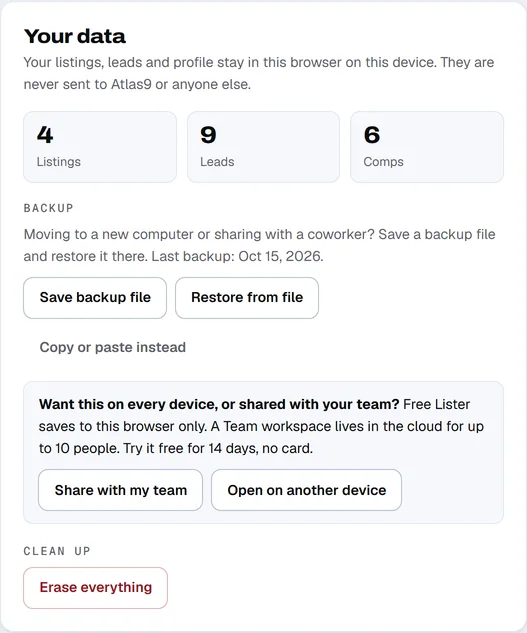
- Free tool: your listings, leads, comps and profile are saved in your browser, on this device only. Atlas9 never receives them.
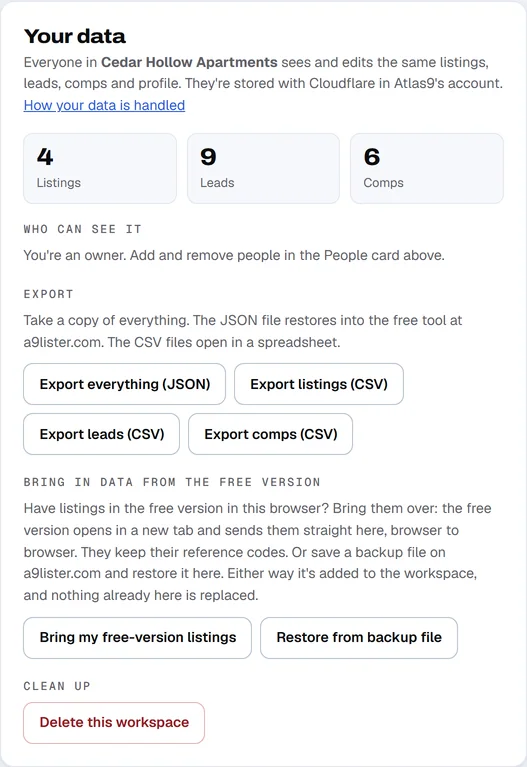
- Team workspace: they are saved in the workspace, in Atlas9's Cloudflare account, and everyone in it can see them. The privacy page lists exactly what is stored and who can see it.
Both places have a Your data card on the Profile tab, with the counts of what you have and the buttons below.
Back up the free tool#
Because the free tool keeps everything in your browser, clearing your browser's site data, or using a different browser or device, means it is not there. A backup file is how you keep it safe or move it.
- Open the Profile tab.
- Click Save backup file. A file named like
a9lister-backup-2026-10-18.jsondownloads. - Keep it somewhere safe, such as your documents folder or email it to yourself.
After five or more saved listings, My listings shows a bar reminding you to save a backup if you have not in the last 14 days.
Restore from a backup#
- On the device where you want your data, open the free tool and the Profile tab.
- Click Restore from file and pick the backup file. (Or click Copy or paste instead, paste the backup text into the box and click Restore.)
Erase the free tool's data#
Click Erase everything, then Erase to confirm. All listings, leads and comps on this device are deleted. Your profile details stay. If you want a copy first, save a backup file. Keep my data cancels. To remove only the sample rows, click Remove example data.
Move the free tool's listings into a workspace#
If you start a workspace after using the free tool, you can bring your listings, leads and comps with you. They keep their reference codes, and the workspace's counter moves past them, so the next ad you save gets the next number.
- Sign in to your workspace and open the Profile tab.
- Under Bring in data from the free version, click Bring my free-version listings. The free tool opens in a new tab.
- Wait for the message that starts "Done." and says what is now in your workspace. You can close the other tab.
This goes straight from one tab of your browser to the other. It does not go through a9lister.com's server. If your browser blocks it, save a backup file in the free tool and click Restore from backup file in the workspace instead. Either way the data is added to the workspace. Nothing already there is replaced.
Export a workspace#
Only owners can export. The Your data card in the workspace has four buttons:
- Export everything (JSON) downloads one file with all listings, leads, comps and the profile. You can restore it into the free tool.
- Export listings (CSV), Export leads (CSV) and Export comps (CSV) download spreadsheets that open in Excel or Google Sheets.
The JSON file lists your photos but does not contain the pictures. To get a listing's pictures, use Download photos on the listing. See Photos.
Export keeps working when a workspace is read-only.
Delete a workspace#
Deleting is permanent, and it is for owners.
- Export first if you want a copy.
- On the Your data card, click Delete this workspace.
- Type the workspace's name exactly as shown to confirm, then click Delete this workspace again.
This removes every listing, lead, comp, request, photo and person from the workspace for everyone in it. If the workspace has a paid plan, the subscription is ended too, so you are not billed again. You get a deletion ID and a written confirmation of what was removed, with a Copy confirmation button.
Cloudflare keeps automatic database backups for up to 30 days. They age out on their own, so within 30 days no copy exists. Atlas9 keeps one small record of the deletion itself: the workspace name, the date, how many records and accounts went, and who deleted it.
If you would rather ask, email support@atlas9.ai from an owner's address.
If you are a member#
Members cannot export or delete a workspace. To stop using one, ask an owner to remove you from the People card.