Teams: inviting people and roles
A team workspace keeps listings, leads, comps and photos in one shared place for up to 10 people. Here is how to start one, invite people, and what owners and members can each do.
What a workspace is#
A workspace is your company's shared copy of A9 Lister at app.a9lister.com. Everyone in it sees and edits the same listings, leads, comps, photos and profile, and ads get reference codes from one shared counter, so no two people ever get the same code.
The free tool works the same way on screen, but it keeps its data in one browser and cannot be shared. A workspace is how an office works from the same listings.
Start a workspace#
The quickest way is the free 14-day Team trial. It needs no card.
- Click Try Team free for 14 days at the top of the free tool, or go to app.a9lister.com/start.
- Enter your company name and email address, or choose Google. A9 Lister checks the address first: nothing is created until you open the link it emails you or sign in with Google.
- Open the link in the email. Your workspace opens, with a welcome and the trial's days left at the top.
- To bring over the listings you already have in the free tool, use the card that offers to Bring my free-version listings. See Exporting and deleting your data.
The trial is the Team plan: up to 10 people, for 14 days. See Plans and billing for what happens next.
How people sign in#
There are no passwords. Each person signs in at app.a9lister.com with their email address, one of two ways:
- Google. If the address is a Google account, choose the Google button.
- An emailed link. Enter the address and A9 Lister emails a one-time link. It works once and expires in 15 minutes.
A9 Lister knows which workspace someone belongs to from their email address. Signing in stays active for up to 30 days on that device, until they sign out.
Owners and members#
Every person in a workspace is an Owner or a Member. The person who starts the workspace is an owner.
| Can they… | Owner | Member |
|---|---|---|
| Write ads, save and edit listings | Yes | Yes |
| Log leads and add comps | Yes | Yes |
| Add, reorder and delete photos | Yes | Yes |
| Edit the shared profile | Yes | Yes |
| See the plan and how many seats are used | Yes | Yes (view only) |
| Invite and remove people | Yes | No |
| Choose or change the plan, update the card | Yes | No |
| Export the workspace | Yes | No |
| Delete the workspace | Yes | No |
A member who tries something owners-only sees a plain message, such as "Only owners can change the plan."
Invite someone#
Only owners can invite. You need the person's email address.
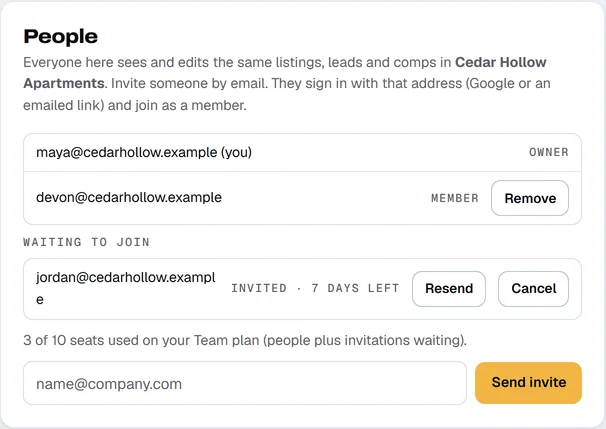
- Open the Profile tab and find the People card.
- Type the address into the box and click Send invite.
- The person gets an email with a link. They click Sign in and join. The link works once and expires in 7 days.
- They appear in the list as a Member.
Invitations that are waiting#
An invite that has not been used shows under Waiting to join, with how many days are left. Click Resend to email the link again and restart the 7 days, or Cancel to withdraw it.
Remove someone#
Click Remove beside a member, then confirm. They can no longer open the workspace. Their listings, leads and comps stay with the workspace. Owners cannot be removed here. Email support@a9lister.com if an owner needs to change.
Seats#
A Team plan includes 10 seats. Each person and each invitation that has not been used takes a seat, so nine people and one waiting invitation fill ten seats. When the seats are full, the invite box is replaced with a message. Cancel an invitation or remove someone to make room, or email support@a9lister.com if you need more. A Pro plan is for one person, so it has no invite box. To add people, switch to Team.
Working together#
- Your changes are saved on your device first, then sent to the workspace right after, or as soon as you are back online. A small Offline label at the top shows when it cannot connect, and your work waits there.
- If two people change the same listing, the version saved first stands. Your screen shows it and says who changed it.
- The ticks in the posting helper stay on your own screen. They are not shared.
Ask for a change#
In a workspace, Request a change at the top of the page sends the A9 Lister team an idea or a problem. You get a ticket number, and the Requests tab shows each request and where it stands. Please leave customer names and phone numbers out of requests.